
Fighting Back Against Bloated Firefox
When Firefox 89 arrived, the menu line spacing became annoyingly wide. Bookmark lists that used to fit on screen now require scrolling to open. The newly adopted Proton UI was apparently designed with touch input in mind, making menus and tabs extremely spacious. For those of us who only ever use a mouse, it’s nothing but a downgrade.
| Original Firefox UI (Bookmarks) | New Proton UI (Bookmarks) |
|---|---|
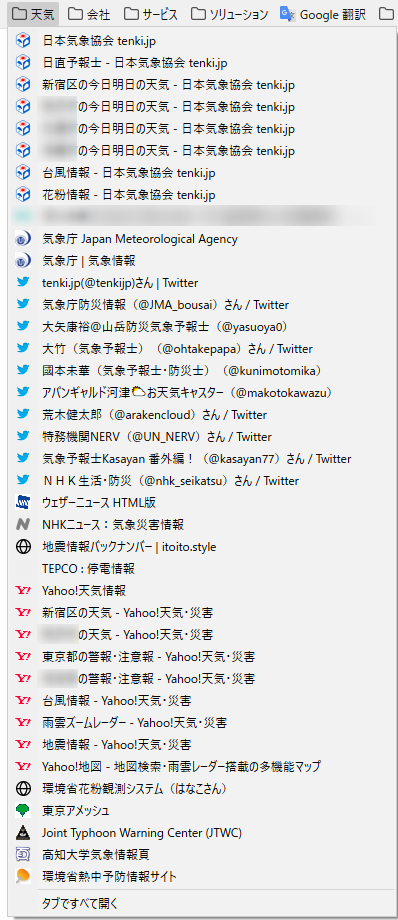
|
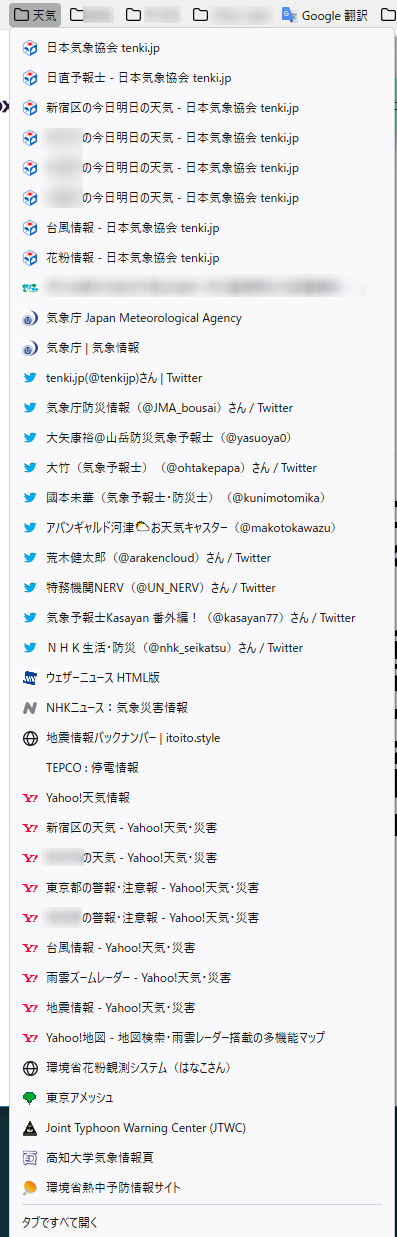
|
| Original Firefox UI (Options) | New Proton UI (Options) |
|---|---|
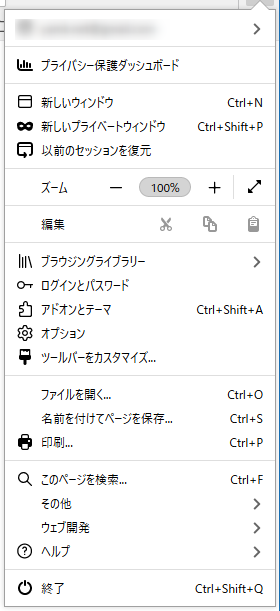
|
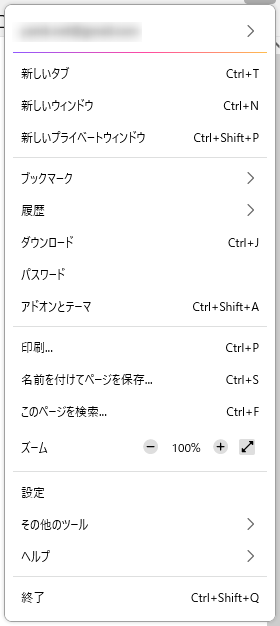
|
Firefox 89–90 allowed disabling this Proton UI via internal settings, but Firefox 91 released on August 11, 2021 removed both the Proton disable toggle and all non-Proton UI code.
Being a free user I can’t complain too much, but searching online revealed — predictably — a surge of posts on Twitter and foreign forums asking if anything can be done. After some trial and error, I managed to get it back close to the original feel.
Enabling Custom CSS
Firefox’s UI is HTML-based, so its design can be customized with CSS (Cascade Style Sheets) files. However, since Firefox 69 this customization CSS is disabled by default, so it must be enabled first.
※ If already enabled, skip this step.
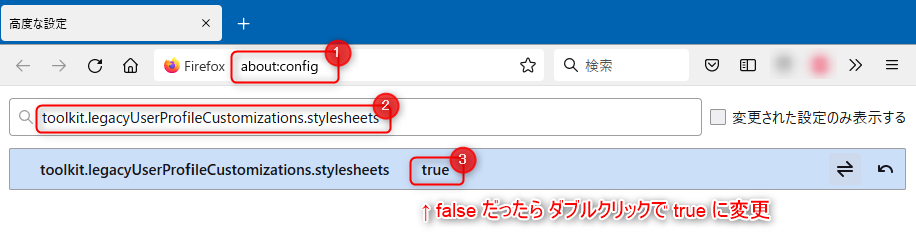
- Open about:config in the address bar. If a warning appears, proceed.
- Paste toolkit.legacyUserProfileCustomizations.stylesheets into the search area.
- If the value is false, double-click to change it to true. No need to save explicitly.
Placing the Custom CSS File
The custom CSS file for Firefox belongs here — the steps below describe how to put it there.
(profile folder)\chrome\userChrome.css
Open the Profile Folder
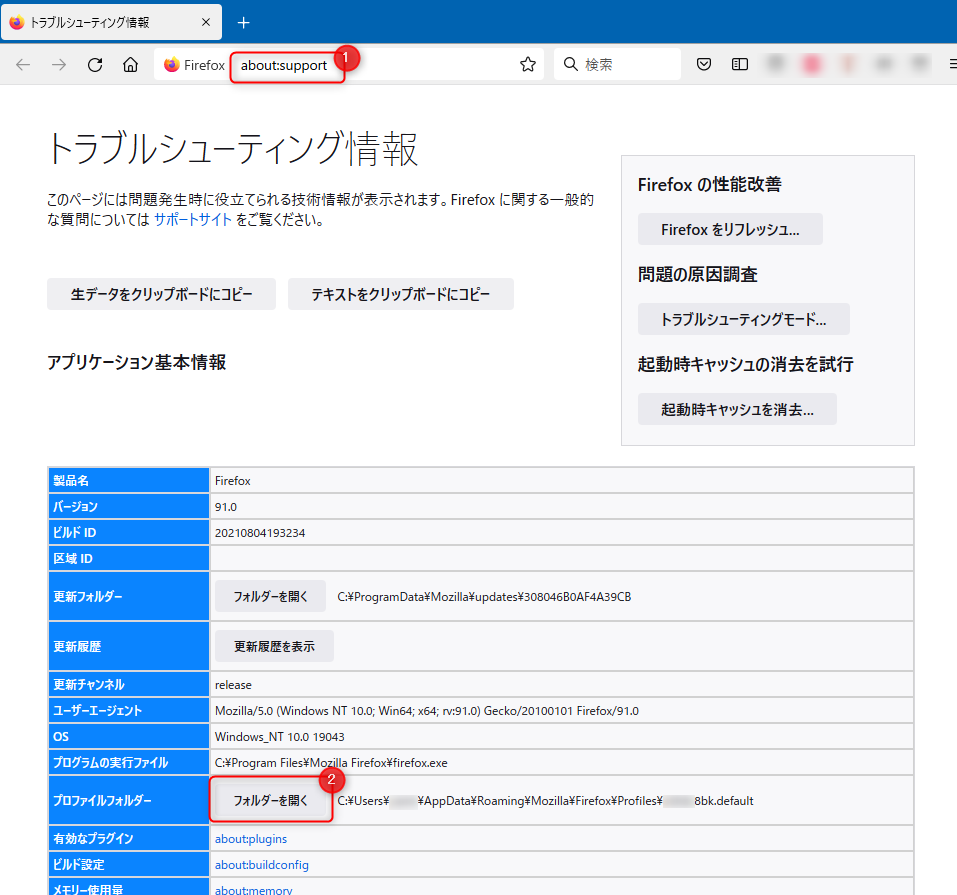
- Enter about:support in the Firefox address bar to open the Troubleshooting Information page.
- Click the “Open Folder” button next to the Profile Folder field.
- ※ Leave the about:support page open — you’ll need it shortly.
Create a chrome Folder Inside the Profile Folder
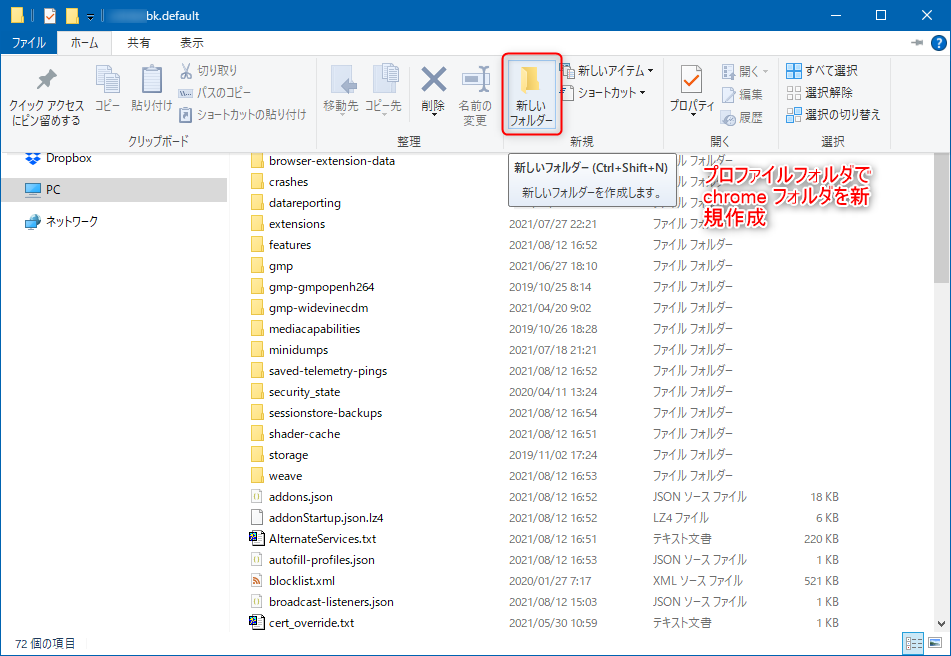
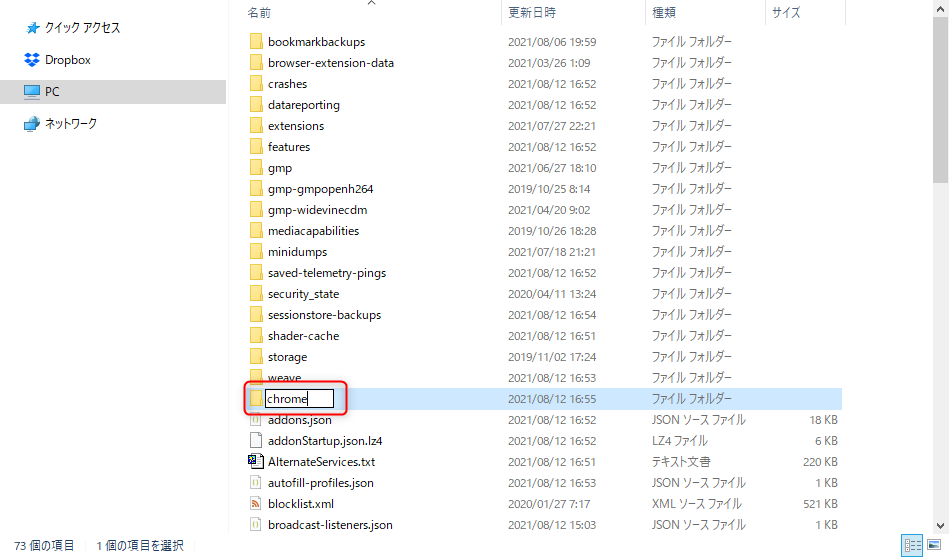
Create a userChrome.css File Inside the chrome Folder
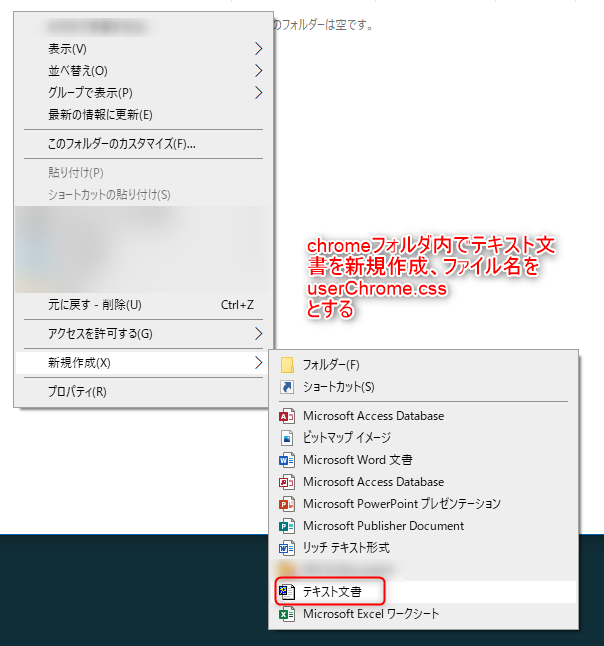

※ If file extensions are hidden, the file may end up as userChrome.css.txt — make sure to enable “Show file extensions” first.
Edit the userChrome.css File
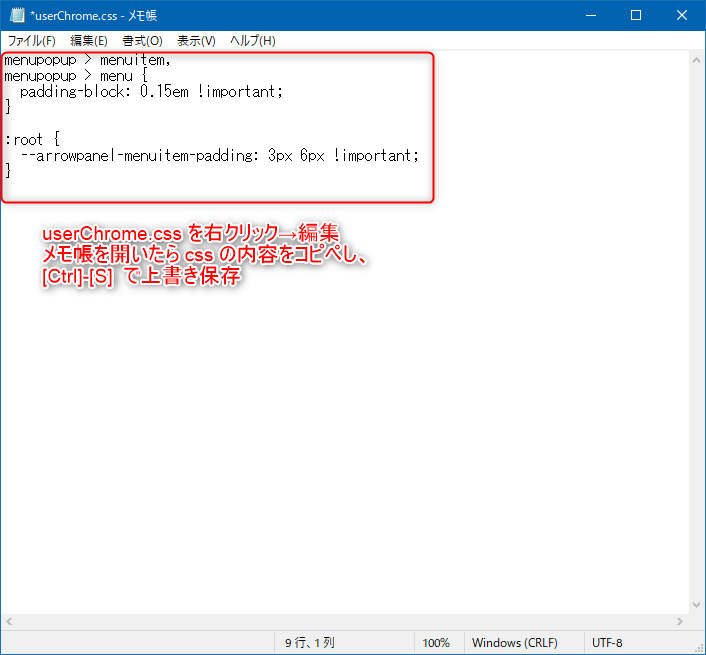
- Right-click userChrome.css → Edit to open it in Notepad
- Copy and paste the CSS code below
menupopup > menuitem,
menupopup > menu {
  padding-block: 0.15em !important;
}

:root {
  --arrowpanel-menuitem-padding: 3px 6px !important;
}
Activate the Custom CSS
On the about:support “Troubleshooting Information” page you kept open, click “Clear startup cache…”.
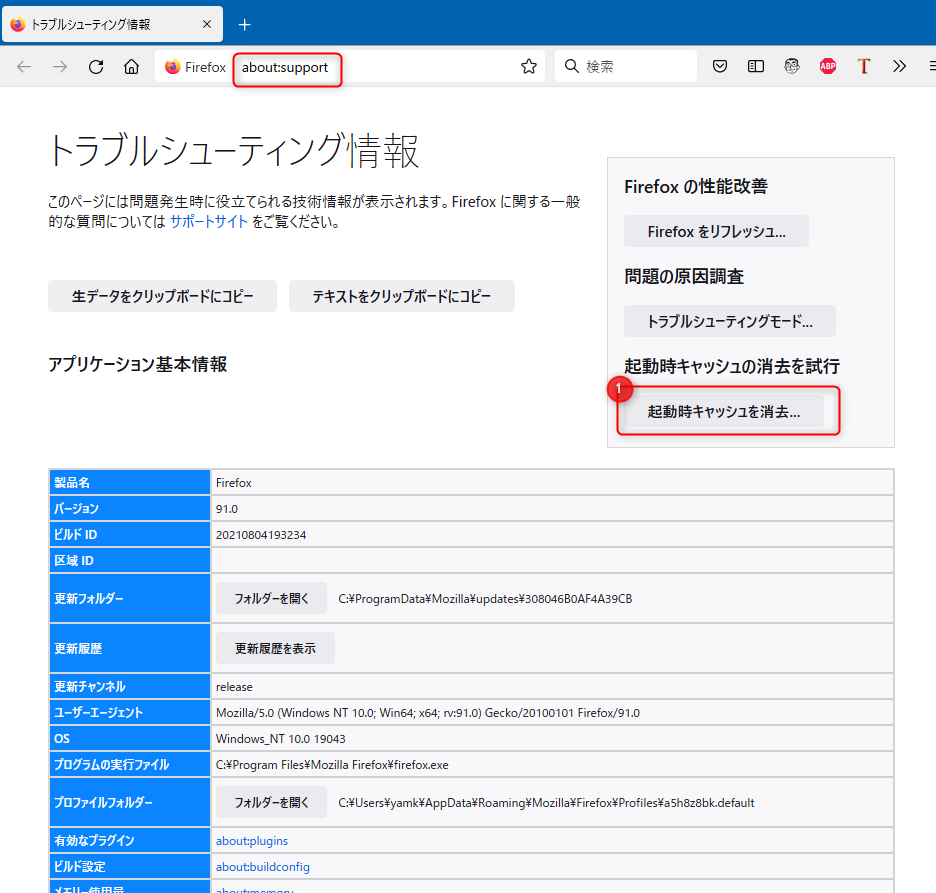
Firefox will restart entirely, load the custom CSS, and if the menus return to their original compact design, it’s a success.